Softball ScoreTap User Guide
This guide follows the current Softball ScoreTap controls for scoring, lineup management, defense, game completion, and saved-record playback.
1. Quick Start
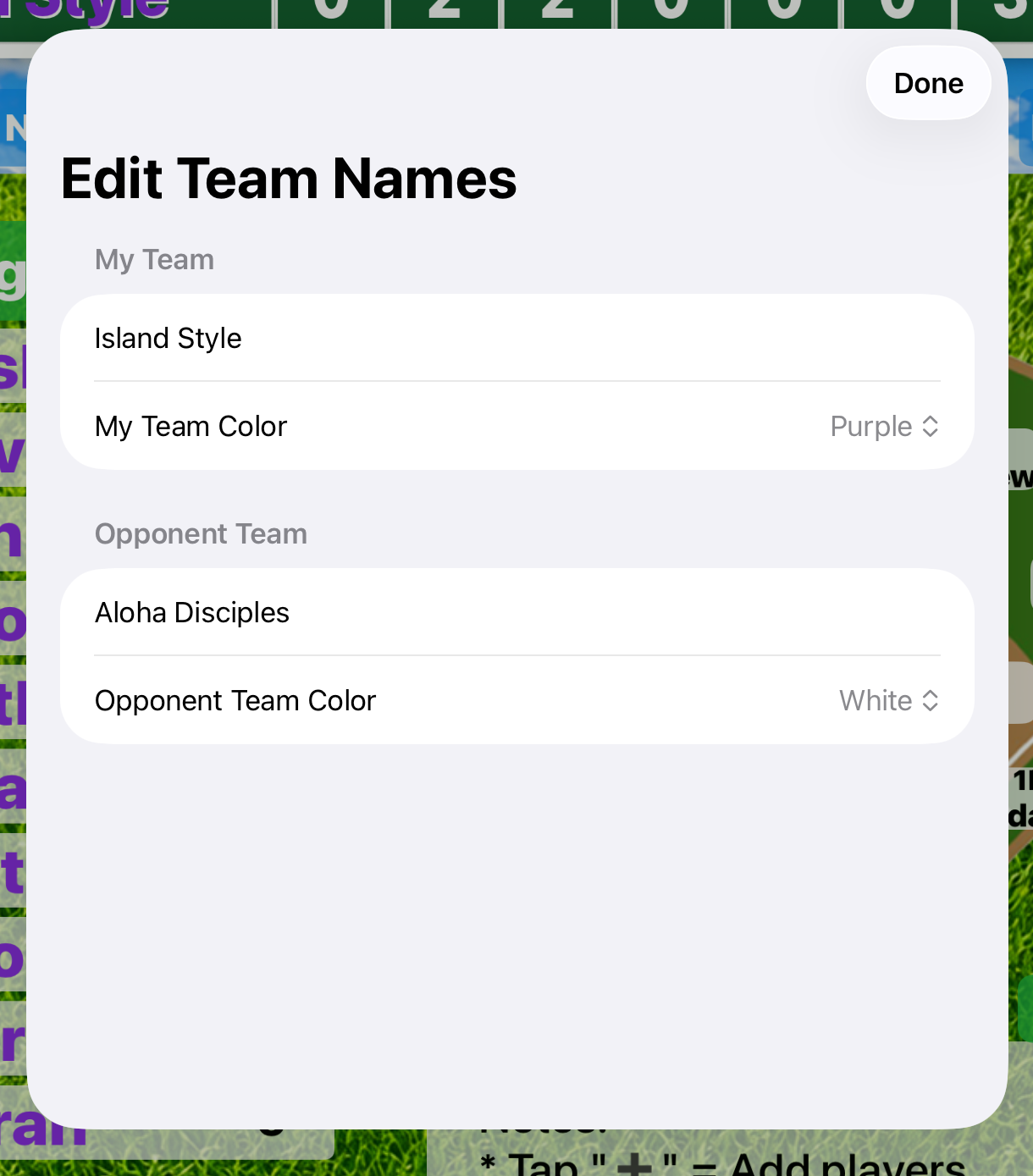
- Set My Team and Opponent Team names/colors if needed.
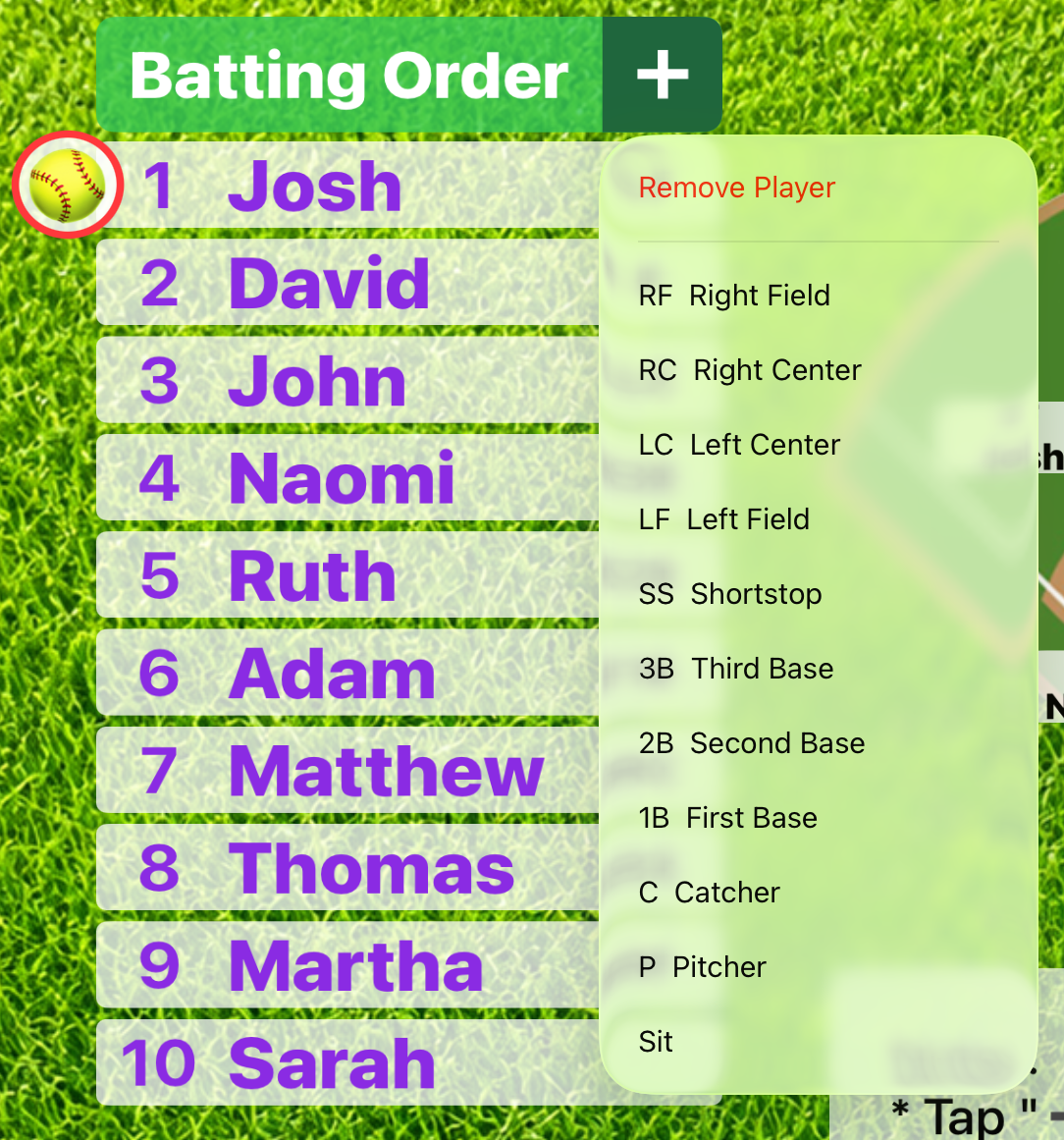
- Tap Batting Order + and enter player names separated by commas.
- Use the … menu or drag a player to assign a defensive position.
- Move the red 🥎 marker to show the next batter due up.
- Enter each inning score and use Game Over when the game is finished.
2. Scoring
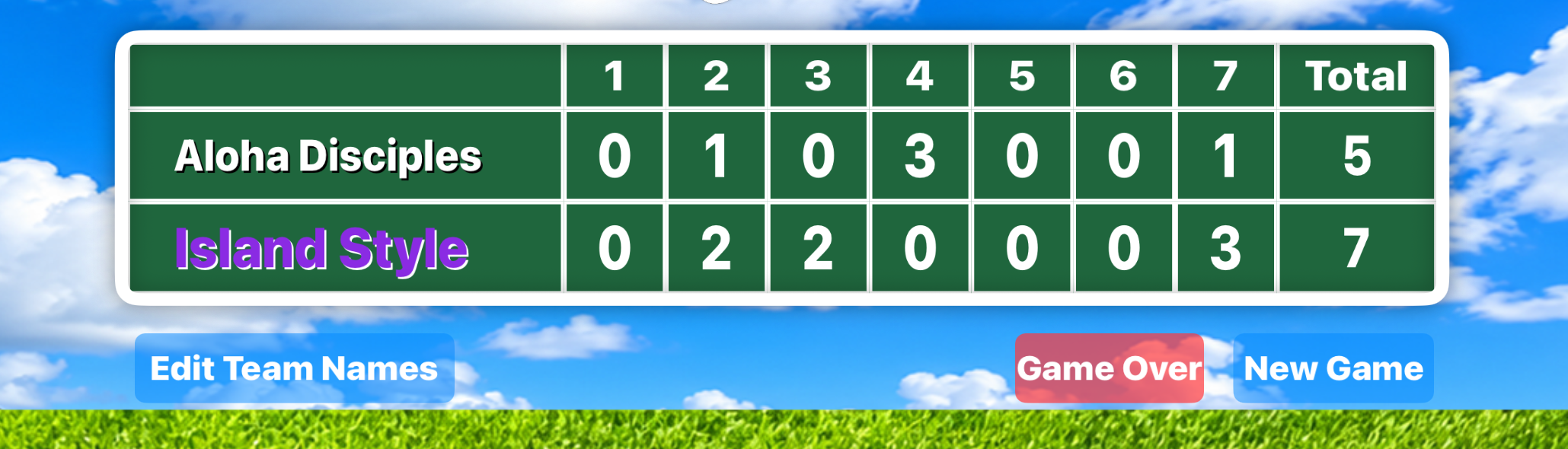
- There are score boxes for innings 1–7 plus an automatic total.
- On an empty score box, the first tap records 0. Additional taps increase the score by 1.
- Long-press a score box to enter a score manually.
- In innings 5–7, you may enter X when the bottom half is not played.
- When the next top half begins, the previous inning is automatically confirmed and saved into the game history.
⚠ Score Check
Blank earlier innings are shown with ▲ and ▼. Example: 2▼ 3▲ means review the bottom of the 2nd and top of the 3rd. If an inning had no runs, enter 0 so it is not treated as missing.
Blank earlier innings are shown with ▲ and ▼. Example: 2▼ 3▲ means review the bottom of the 2nd and top of the 3rd. If an inning had no runs, enter 0 so it is not treated as missing.
3. Players & Batting Order
- Tap Batting Order + to add players. Separate names with commas.
- Tap a batting-order number to move that player to another place in the order.
- Long-press and drag a player name to reorder the lineup or drop the player onto a defensive location.
- Tap … for defensive position, Sit, or Remove Player.
- Drag the red 🥎 marker to indicate the next batter due up.
- Long-press Roster Reset to clear the roster and reset the Due marker.
4. Defensive Positions
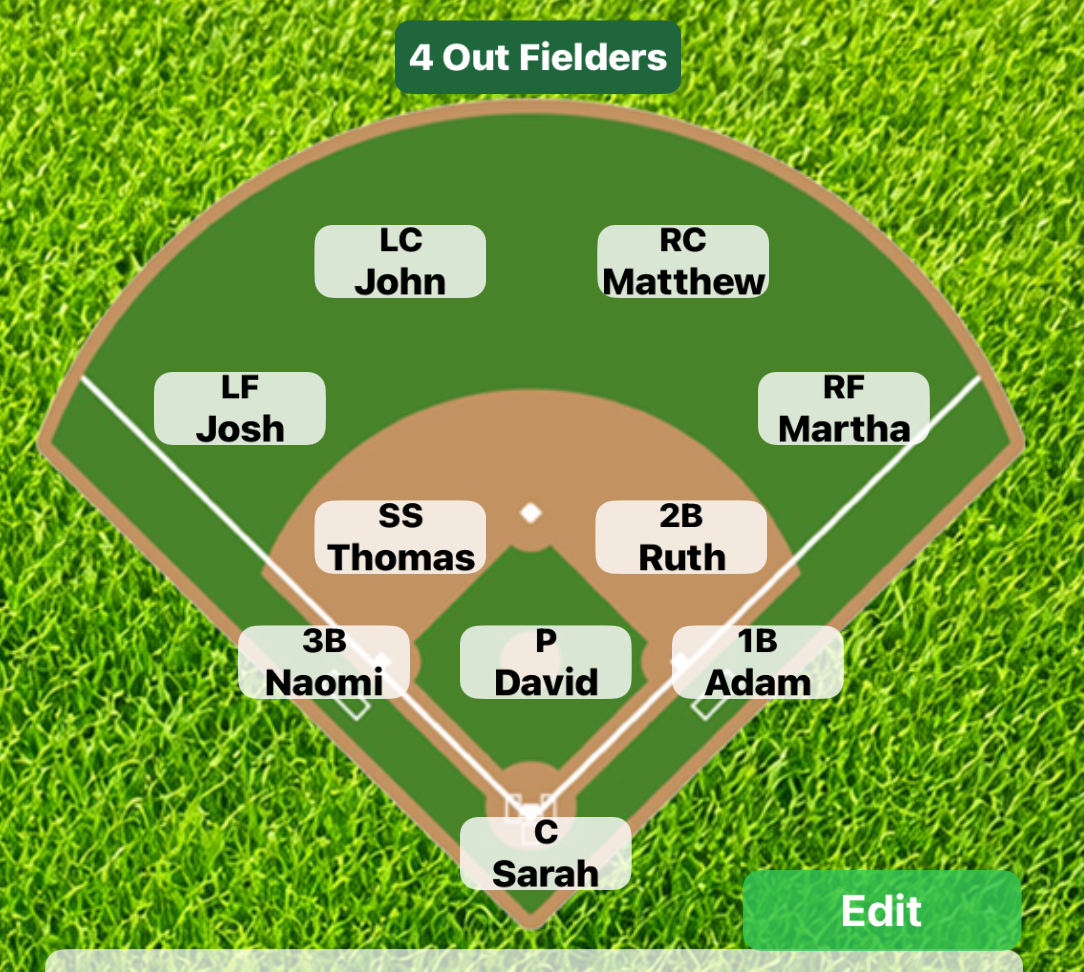
Tap the outfield button to switch between a 4-outfielder and 3-outfielder layout. Position labels follow the app menu:
| Code | Position |
|---|---|
| P | Pitcher |
| C | Catcher |
| 1B | First Base |
| 2B | Second Base |
| 3B | Third Base |
| SS | Shortstop |
| LF | Left Field |
| LC | Left Center (4 OF) |
| RC | Right Center (4 OF) |
| CF | Center Field (3 OF) |
| RF | Right Field |
5. Teams, Banner & Notes
- Long-press Edit Team Names to change My Team / Opponent names and colors.
- Swipe vertically across the scoreboard to swap Home and Visitor.
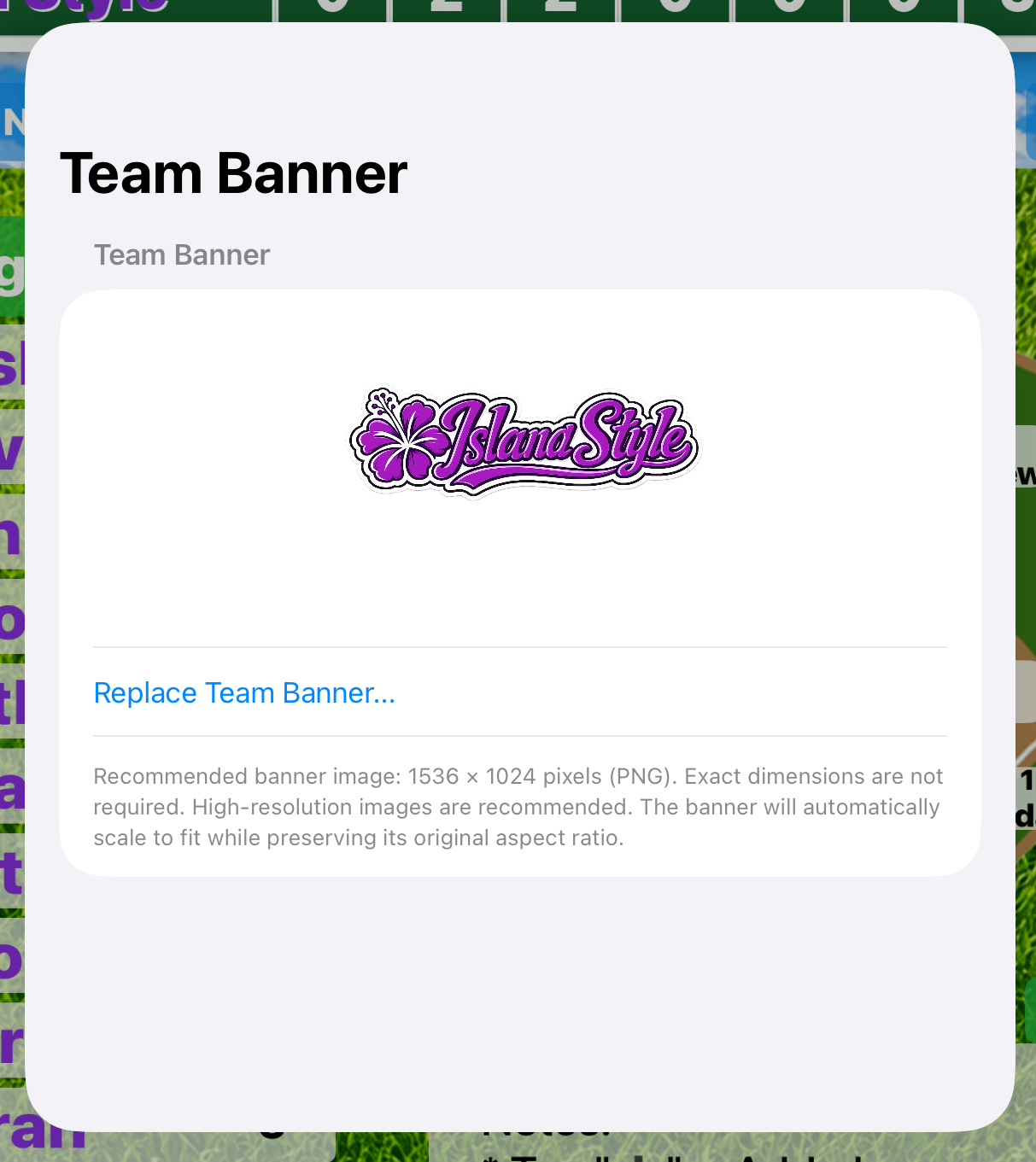
- Long-press the team-banner area to replace the banner or restore the default banner.
- Recommended banner: high-resolution 1536 × 1024 image; the app scales it while preserving aspect ratio.
- Tap Edit beside the notes area to write, clear, or save game notes.
6. Game Over & New Game
- Long-press Game Over. Score Check first reviews the currently used innings for blanks.
- If scores are complete, choose Save & Finish to save the current inning, final score, team names, and defensive lineup.
- If Score Check finds blanks, you can return to review them or choose Finish Anyway.
- Long-press New Game to clear scores, Due marker, and defensive assignments for a new game.
- If there are unconfirmed inning records, the app offers to save them before starting the new game.
- The player roster stays in place for the next game unless you use Roster Reset.
7. Saved Records & Playback
- Tap the folder icon to open Saved Records.
- Tap a record to open it in playback mode.
- Single tap the scoreboard to move forward through inning records.
- Double-tap the scoreboard to move backward.
- Use Select to choose one or more records, then delete the selected records.
- Saved game data includes inning scores/totals and lineup/defensive state used for playback.
8. Language
Use the segmented language selector in the app:
🇺🇸 English🇯🇵 日本語🇹🇼 繁體中文